[TIP] What is Smart Lock on a Chromebook and how do I use it?

Using Smart Lock on your Chromebook


If you are a frequent user of a Chromebook, the boot speed is very fast when you turn on your Chromebook and you must enter it each time on the sign-in screen.


The Smart Lock feature on your Chromebook is designed to ease this inconvenience. This means that if you have a smartphone near your Chromebook, you can sign in without a password.


To enable this feature, your smartphone must be at least Bluetooth-enabled Android 5.0, and your Chromebook must be Chrome OS version 40 or higher.


On your Chromebook, you'll need to select Settings menu> Show advanced settings> Use Smart Lock for Chromebook (Beta). When it is selected to use, search for a Bluetooth-enabled smartphone in the vicinity and select the desired smartphone.
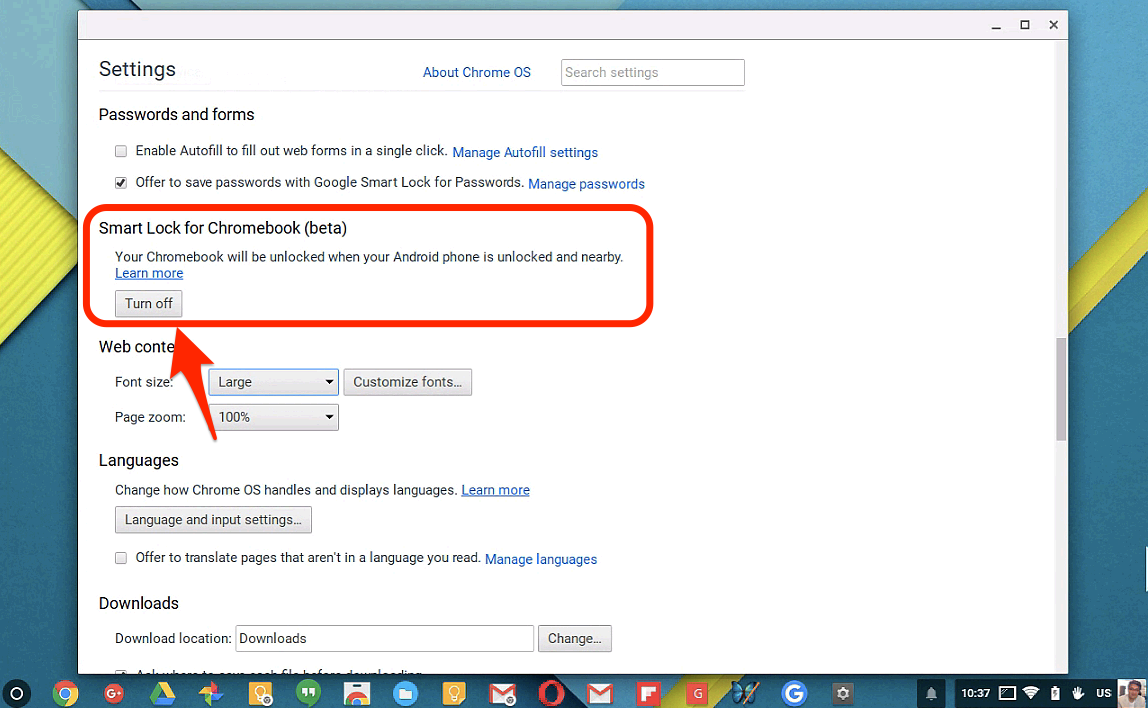

After your Smart Lock setup is complete, if your smartphone is nearby and you're signed in, your Chromebook's login status will also be unlocked as shown in the screen below, in which case you can sign in directly without entering your password by clicking the login picture with your mouse. If your smartphone is logged out or powered off, your Chromebook's login will also require a password to sign in.

smartlock-1.png


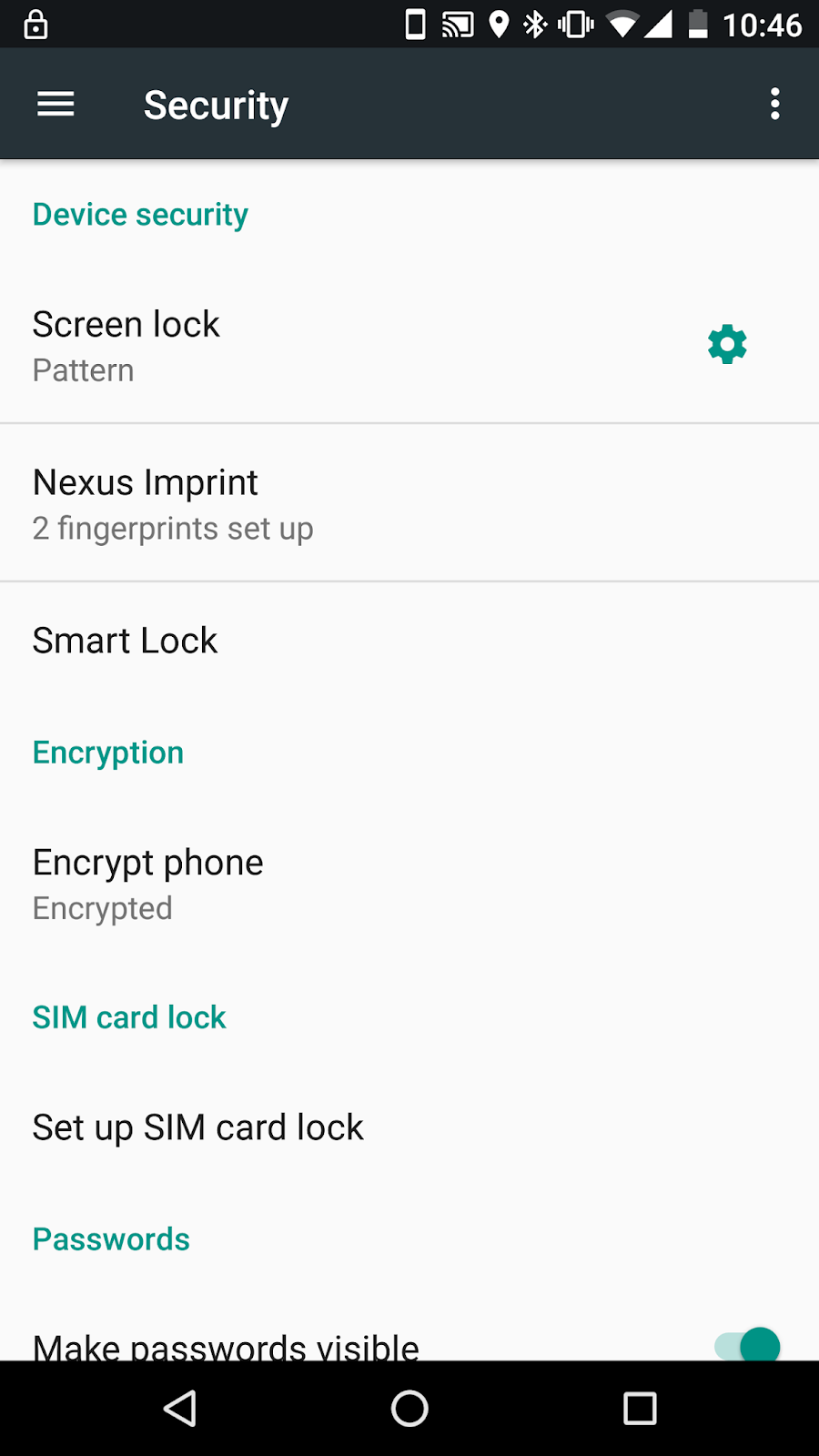
On your smartphone, you need to set up Settings> Security> Smart Lock> Trusted device.
smart.png


For more information- https://goo.gl/IMl8Bu  - Paperback/Kindle Edition)


Comments

  1. That is great research you have done. It is an exceptionally valuable reference for staying up with the latest with the most recent advanced promoting news.

    g suite unlimited cloud storage

    ReplyDelete
  2. Nice Blog, Gsuite a set of intelligent apps including Email, Docs, Drive, Calendar & More with guaranteed 99.9% Uptime and 10+ Yrs experience plus operating with G Suite Premier Partner for providing 24/7 Customer Support. g suite pricing india

    ReplyDelete
  3. What I read from your article is really addictive, great article you! We offer smart door lock, please visit our web site! khoa cua van tay thank you very much

    ReplyDelete

Post a Comment

Popular posts from this blog

How to Manage Android Apps for Google Workspace users using Chromebook

How to Manage Android Apps (Google Play(beta)) for Google Workspace users using Chromebook  A Google Workspace  administrator can manage Chromebook users who want to install Andorid apps in the domain. Here is the information on how to manage Chromebook users installing Android apps by Google Workspace administrator. An administrator can force to install approved Android apps for Chromebooks logined in  Google Workspace . or allow  Google Workspace  users to install the Android apps from Play Store.  If you’re a Chrome for business customer, the managed Google Play Store is available for   these Chromebooks   using Chrome OS version 53 and later. For Chrome for education, the managed Google Play Store is supported on Chrome OS version 56 and later. Before you begin         Enable Android apps for Chrome OS in your domain Android apps on Chrome OS use the Android and Google Play manage...

What is Chrome Enterprise Upgrade (Chrome Device Management)?

Ho w to manage Chrome Devices for Enterprise and Education. (CEU) Companies have not had a positive view of Chromebook. In recent years, however, businesses have changed the perception of Chromebook. According to the IDC report , there are predictions that by 2018, 25% of Fortune 500 companies will use Chromebook. One of the biggest features for Chromebook is that it has an affordable price (average $ 150 - $ 300). In addition, it features fast performance, fast booting, secure computers free from viruses and malware, easy-to-manage computers, free office document editing tools, and MS Office compatibility tool. With the ability to run even millions of Android apps on the Google Play Store, Chromebook evolves into innovative computers that are capable of not only cloud-based online apps but also Android offline apps. Google is launching a Chrome-based platform to strengthen its enterprise market. Google is driving the new paradigm of computers in the ent...

[About Stylus pen for Samsung Chromebook Plus - Pros. & Cons.]

One of the things that makes Samsung Chromebook Plus different from other Chromebooks is its stylus pen support. When you unplug the pen on the top right of your Chromebook Plus, the following stylus tool will automatically appear at the bottom of your Chrome browser and Google Keep will launch when you launch the "New Note" app for your stylus pen. The only app that supports stylus pens in Chrome is Google Keep. You can annotate over the image by hand, using the pen features in Google Keep. There are a lot more Android apps in the Google Play Store that support stylus pens. 'ArtCanvas' provided by Samsung, Autodesk Sketch app provided by Autodesk is the leading Android app supporting the stylus pen. The 'Squid' app is a great notes app that supports the stylus pen. All work great on Chromebook Plus with Android apps that you can install free from the Google Play Store. This is a great advantage for the stylus pen of the Samsung Chromebook plus. ...