A set of 3 ChromeOS devices (Chromebook, Chromebox, Chromebit) I am using.
 In the meantime, I was useing Chromebooks and Chromeboxes based on Chrome OS, but recently I bought a Chromebit that was released by Asus.
The purpose of this Chromebit purchase is to compare how much better the Chromebook and Chromebox compared to the Chromebit, but the main purpose is to register as a Chrome Device Management Console device and review whether it is good for the ChromeOS Kiosk and Digital Signage.
I think that the Chromebit size (about the size of the thumb) and the price ($ 85) would have a positive ratio and would be a signage kiosk device. After this release, Chrome OS and Kiosk apps will be linked to the second installment.
Thumb-sized ChromeOS devices - 2GB Ram, 16GB storage, WiFi 802.11ac, Bluetooth 4.0, 1 USB 2.0 port, HDMI port, price $ 85
As an option, I bought a Logitech wireless keyboard (wireless dongle + keyboard + touchpad) for $ 25 and a set of Chrome OS devices.


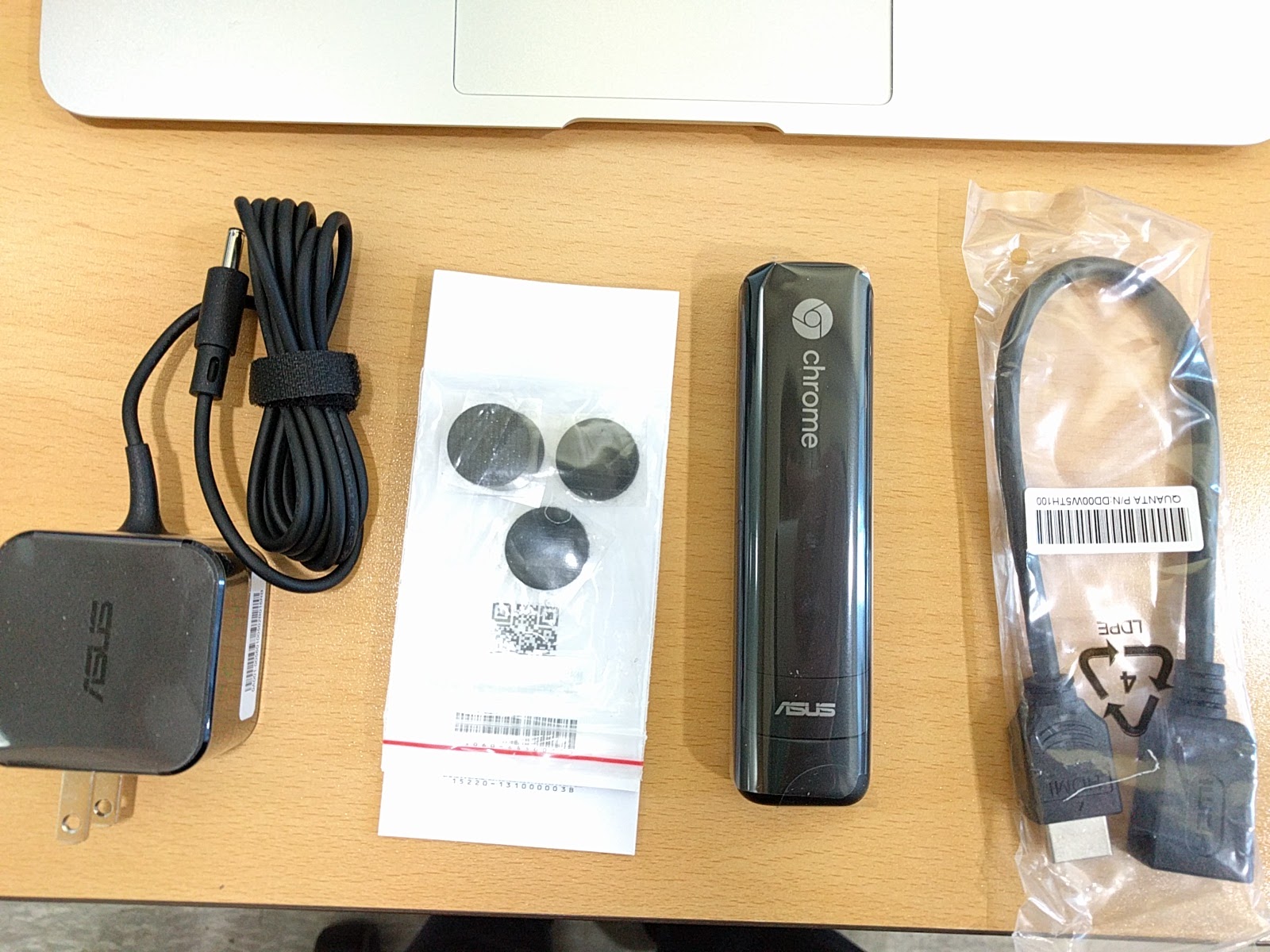
Box components are very simple - power cord, sticker to monitor, chrome comb body, HDMI extension cable.

Plug-in the Logitech keyboard wireless dongle into the USB 1 port terminal, plug in the power cord, and plug it into the monitor's HDMI port to boot up immediately


After signing in with an existing G Suite account, we found that it performs significantly better than writing Gmail and Drive documents.
--------------------


The purpose of this Chromebit purchase is to compare how much better the Chromebook and Chromebox compared to the Chromebit, but the main purpose is to register as a Chrome Device Management Console device and review whether it is good for the ChromeOS Kiosk and Digital Signage.
I think that the Chromebit size (about the size of the thumb) and the price ($ 85) would have a positive ratio and would be a signage kiosk device. After this release, Chrome OS and Kiosk apps will be linked to the second installment.
As an option, I bought a Logitech wireless keyboard (wireless dongle + keyboard + touchpad) for $ 25 and a set of Chrome OS devices.



Plug-in the Logitech keyboard wireless dongle into the USB 1 port terminal, plug in the power cord, and plug it into the monitor's HDMI port to boot up immediately


YouTube launch screen
--------------------
Kindle Edition-Paperback/eBook -
"Advanced Chrome Device Management & 2017 Essential Guide for Chromebook Users"
I have been using the Asus Chromebit for Digital Signs for a while now. I haven't had any major problems to speak of. We currently have about 60 out there.
ReplyDeleteNice article... Chromebit for Digital Signage sounds very nice device. I am using Chrome signage and it is awesome.
ReplyDeleteThat is great research you have done. It is an exceptionally valuable reference for staying up with the latest with the most recent advanced promoting news.
ReplyDeleteg suite basic pricing india
Nice article
ReplyDeleteClick here:Soap Bubble
Windmill live Wallpaper
Timer Plus
Opera Browser
Peroidic table
4g Lte Only mode